Leveraging Your Effort
While it is easy enough to create HiWIRE® primitives and arrange them into simple patterns, anything but the most trivial design would be impossible if you had to insert and position each one individually. Fortunately, with perhaps one exception, you'll spend very little time dealing with solitary primitives.
With HiWIRE®, you can aggregate primitives into groups. The group then behaves as if it were a solitary primitive. For example, you can move a group or copy it using the pick-'n’-drag technique described earlier. Also, you can incorporate groups along with primitives into an enclosing group.
Assembling and dismantling groups is so common, so fundamental, that HiWIRE® strives to make it as easy as possible.
Selecting Things
Before items can be incorporated into a group, they must be selected. There are two ways to select them: clicking and lassoing.
Clicking
Begin as if you were about to move the item, but after picking it, click the left button (i.e., press and immediately release the button without moving the cursor). If you're successful, one or more knobs will adorn the item.
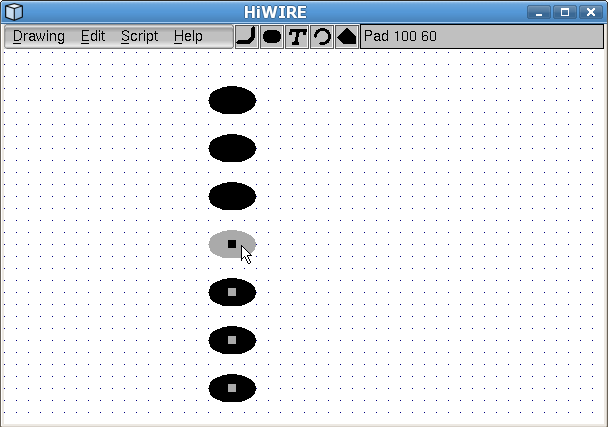 |
Figure 4A |
Here is the SIP footprint just after clicking four of its pads.
The hotsmudge size controls the size of the knobs displayed on selected items. It also controls how precisely you must point at an item to pick it. If you have trouble steadying the mouse while moving, copying or selecting items, try adjusting this setting on Edit->Preferences….
Lassoing
To select multiple items it is sometimes easier to lasso them all at once:
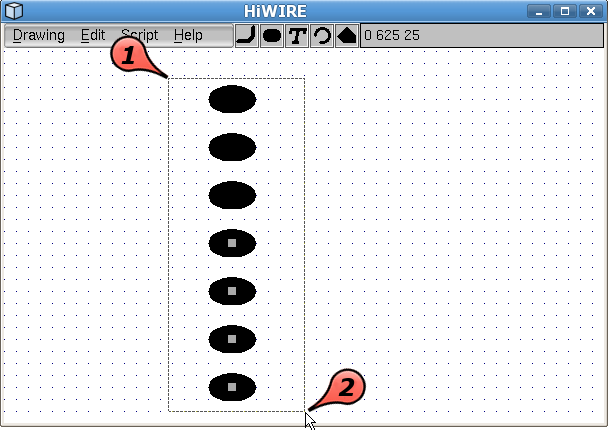 |
Figure 4B |
Move the cursor to one corner of an imaginary rectangle that will completely contain the set of items you're selecting, and then press and hold the Ctrl key.
Press the left mouse button and drag the lasso to the opposite corner of the rectangle to corral the items, and then release the mouse button.
The new selection replaces any existing one. In Figure 4B the effect is to replace the four selected pads with a new selection comprised of all seven.
You need not depress the Ctrl key for the duration of the drag. You may release it as soon as the lasso appears. And of course, feel free to use the Alt or Shift equivalents if you prefer.
Revising a Selection
If you misclick or accidentally lasso an item you didn't intend, don't worry. Simply click the offending item again. Clicking an item toggles its selection state.
To cancel an entire selection, lasso nothing. To put it another way, Ctrl-click with the cursor aimed at the background.
Assembling
You can assemble a group from the selected items with Edit->Bind from the menu:
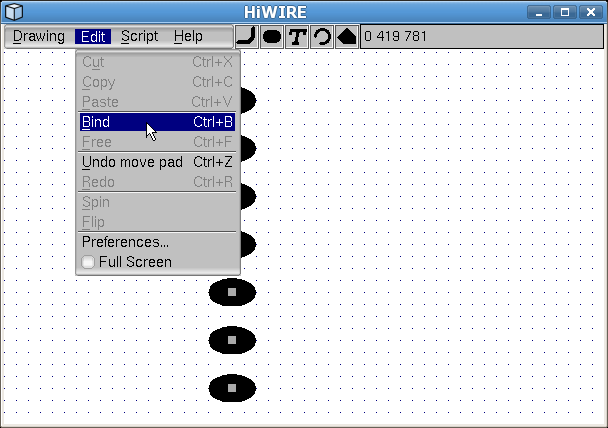 |
Figure 4C |
But you do it so often you may eventually prefer to use the keyboard shortcut, Ctrl-B. Press and hold the Ctrl key while typing B on the keyboard.
By way of confirmation, the selection knobs will vanish from a newly formed group.
Unlike mousing operations where Alt, Ctrl and Shift are interchangeable, keyboard shortcuts require Ctrl to work.
Below, observe how the grouped pads’ behavior has changed. Now, Alt-dragging one piece duplicates not only that piece, but six additional pieces and brings them along for the ride. The SIP has been transformed into the ubiquitous 14-pin DIP.
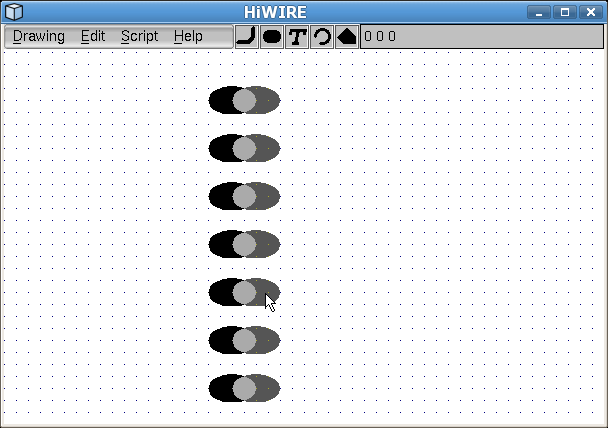 |
Figure 4D |
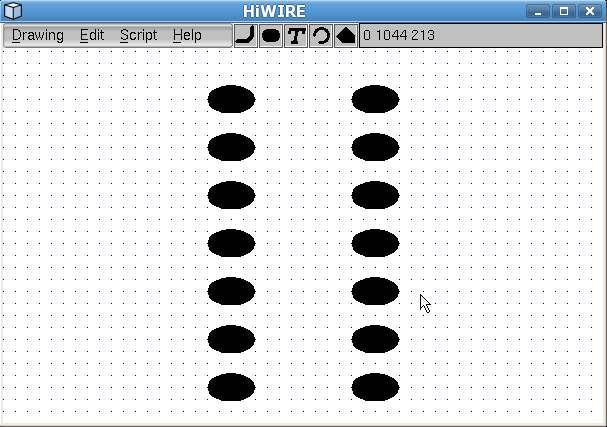 |
Figure 4E |
Dismantling
To dismantle a group, select it. (Clicking usually works best.) Then select Edit->Free or use the shortcut, Ctrl-F.
Using the Clipboard
You can copy or cut a single selected primitive or group to a special buffer outside your drawing. The former leaves a copy behind; the latter removes the item from your drawing. You can subsequently paste the item back into your drawing, into another drawing or incorporate it into a library.
People sometimes refer to such a buffer as a clipboard. Although that term usually refers to a similar buffer for moving data between different programs, HiWIRE's clipboard is private, and is usable only by HiWIRE itself.
HiWIRE has only one clipboard, and it can hold only one item. A new item placed there replaces any existing item. The item persists if you open a new drawing. This is the easiest way to move an item between drawings.
Copying
To make a copy of an item in your drawing on HiWIRE's clipboard, select a single item and then choose Edit->Copy from the menu or use the keyboard shortcut, Ctrl-C.
Cutting
To remove an item from your drawing, but save a copy on the clipboard, select a single item and then choose Edit->Cut from the menu or use the keyboard shortcut, Ctrl-X.
In HiWIRE, use Edit->Cut to delete an item. There is no distinct “delete-and-discard” operation.
Pasting
To insert a copy of the clipboard item into your drawing, select Edit->Paste from the menu or use the shortcut, Ctrl-V. You may repeat the paste in rubber-stamp fashion. If you're making several copies of an item, you may prefer this operation to the Alt-drag alternative.
Edit->Cut and Edit->Copy only work on a single item. To delete multiple items, first group the items you want to delete, and then cut the group. Likewise, Edit->Free will only free a single group.