Starting and Stopping HiWIRE®
The HiWIRE® main program is its Electronics Editor (ee or ee.exe). The editor allows you to load, change and save drawings. It also supervises other programs that perform less frequent tasks: printing, plotting, extracting a materials list, etc.
Under a GUI, you may start the editor by selecting HiWIRE® from the system's applications menu or perhaps double clicking the HiWIRE® icon on your desktop. After its main window appears, you can load an existing drawing or create a new one. If you exit the editor or close its main window, you'll be reminded to save your work.
Under a CLI you'll most often simply change directory to the one that holds your drawing file, invoke the editor by name, and include the filename on the drawing on the command line.
Linux
Linux users often prefer the command line. Suppose you are running an X terminal (or equivalent) from your home directory, and you want to edit a drawing, ~/real/real_big.pcb. That is, your home directory, ~, has a subdirectory, real, and that subdirectory contains a drawing file, real_big.pcb.
You could either:
  $ cd real          # change from home directory to subdirectory "real"
  $ ee real_big.pcb  # invoke HiWIRE's editor on file "real_big.pcb"
or if you prefer:
$ ee real/real_big.pcb
To create a new drawing, simply specify a file that doesn't exist. Alternatively, just omit the file name entirely; HiWIRE will ask you for it later.
There are an embarassing variety of GUIs available for Linux, and each has its own idiosyncratic way of running programs.
Often, you can pick ee from a menu or click a taskbar shortcut. These methods are equivalent to invoking ee without a file name, and you'll have to open an existing drawing after HiWIRE's main window appears. Read further details below.
Other times, from the file manager, you can drag and drop a drawing file on top of ee's icon. This is usually equivalent to invoking ee with the path name of the file as an argument. The drawing is displayed, and you can begin work immediately.
Microsoft Windows
By default, the HiWIRE installer adds an item in your Start->Programs menu and installs a shortcut icon on your desktop. Select HiWIRE from the menu:
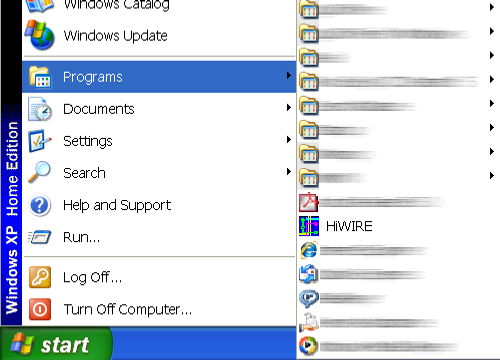 |
Figure 2A |
Or double-click its desktop icon:
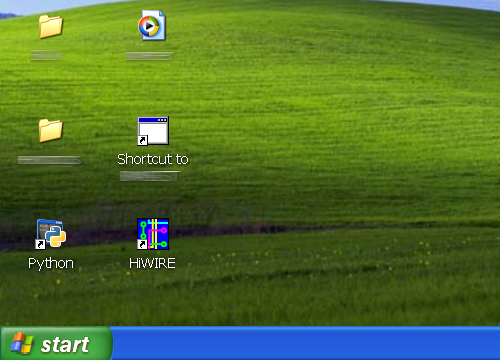 |
Figure 2B |
The Start->Programs menu may sometimes be called Start->All Programs or assume other alias depending on the phase of the moon and various other factors. Be patient. You can find it!
After the HiWIRE main menu appears, choose Drawing->Open from the menu or use the keyboard shortcut Cntl-O to display the file chooser.
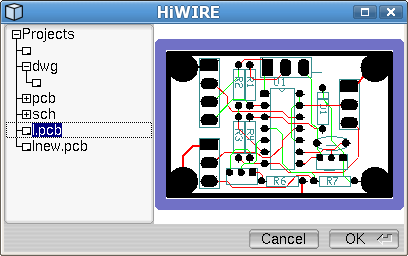 |
Figure 2C |
The chooser's left pane displays the names of drawing files and directories as a tree. To the left of each directory is a small box with a + or – inside. The former are collapsed to hide their contents. Clicking these directories expands them to show what they contain. To the left each drawing file is a rectangular icon that resembles a border and title block often seen on paper drawings. Clicking a drawing previews its contents.
In Figure 2C above, the root directory, Projects, has been expanded to reveal three subdirectories: dwg, pcb, and sch. The first subdirectory has also been expanded; the other two have not. There are two drawings in the root directory: l.pcb and lnew.pcb; a preview of the first is shown in the right pane.
Immediately beneath each expanded directory is a nameless drawing icon. Select this icon to create a new file in the corresponding directory. You'll be asked to give it a name later, when you save it.
After making your choice, click OK or press Enter to approve your selection.
Directories are sometimes referred to as folders to evoke a warm, fuzzy feeling amongst management types.
The chooser shows only drawing files. Other files may be present in the tree, but they are not shown.
Mac OS/X
Coming soon!
Stopping HiWIRE and Saving Your Work
When you've finished making changes to your drawing, select Drawing->Quit from the menu or press the Esc key as a shortcut. HiWIRE will display a dialog to allow you to enter or change the name of the file that will hold your revised drawing. If you opened an existing file, its name will be displayed by default. Enter or change the name or accept the default:
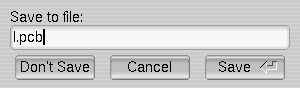 |
Figure 2F |
Click Save (or press Enter) to save your work. Click Cancel if you change your mind and want to make more changes before you quit. Click Don't Save to discard any unsaved changes.
The revised file will saved in the same directory as the original. HiWIRE constructs the new file's path from the original's directory and the text you enter into the dialog. Although you can include a directory component (e.g., ../myfile.pcb)to save your file to a different directory, it is not recommended.
You can save your drawing without leaving HiWIRE. Select Drawing->Save… to periodically back up any changes you've made.
HiWIRE does not enforce any naming convention, and it will silently overwrite any existing file, so choose carefully what you enter into this dialog.
When creating a new drawing, if you forget to specify a directory with Drawing->Open…, your work will be saved into the current directory. Command-line users understand this innately. In graphical environments, this location is highly system- and configuration-dependent. GUIstas may need to troll the file system with their file manager (e.g., Windows Explorer) to locate errant files.